
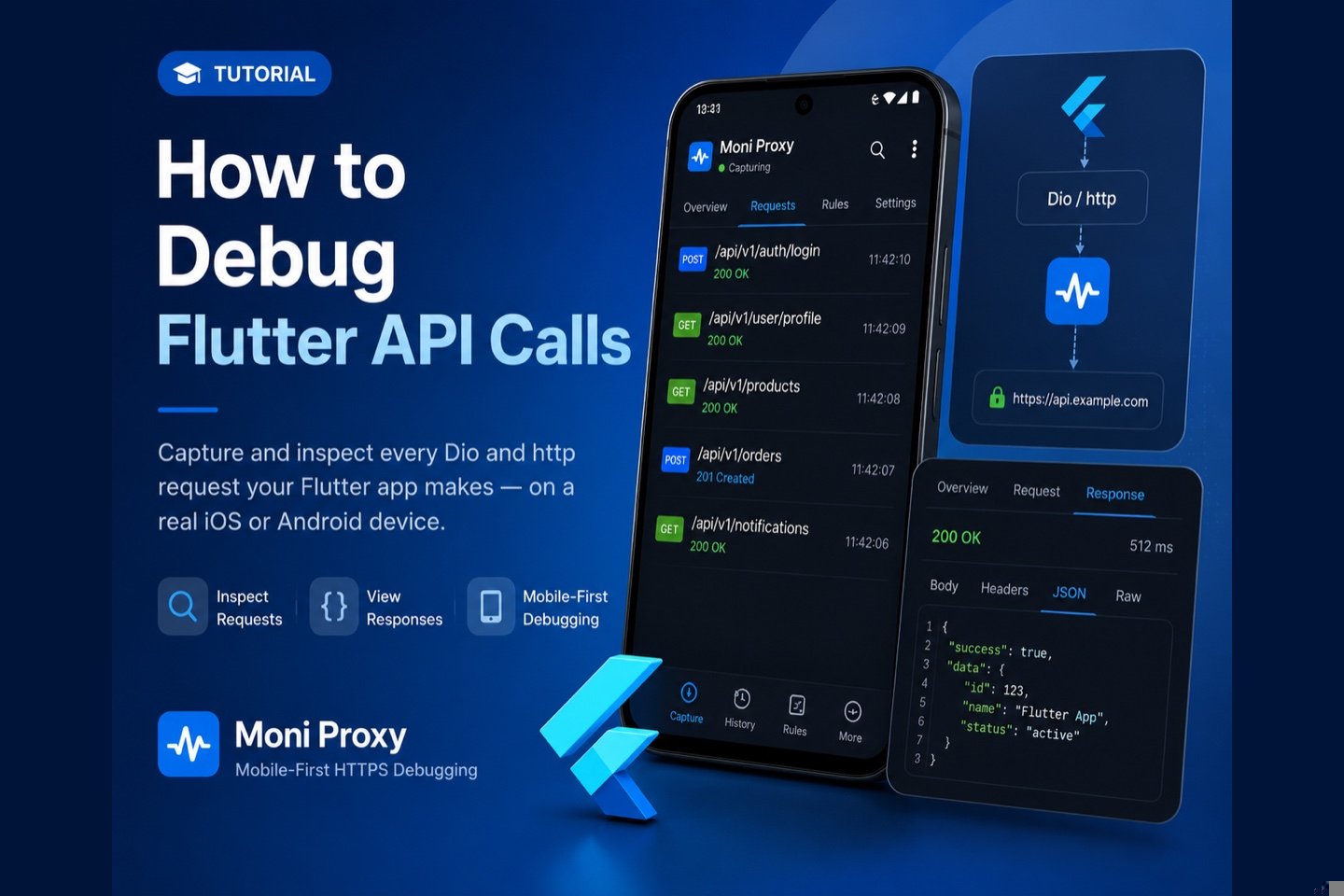
When a Flutter app misbehaves, the root cause is often hiding in the network layer: a request to the wrong endpoint, a missing header, or an unexpected response. Because Flutter's http package and Dio send standard HTTPS requests, you can debug every call your app makes by capturing the device's traffic — regardless of how the Dart networking code is written. This guide shows how to inspect Flutter API calls on-device.
Flutter's networking is deceptively simple on the surface — a few lines of Dio or http — but a real app quickly accumulates interceptors, retry logic, auth refresh, environment switches, and plugin traffic you never wrote yourself. When something breaks, the question is rarely "is the network down?" and almost always "what, exactly, did we send, and what came back?" The fastest way to answer that with certainty is to look at the wire.
Why Capture on the Device?
Flutter runs the same Dart code on iOS and Android, but the actual requests go out over each platform's networking stack. Capturing on the device shows exactly what left the phone, including requests from plugins and SDKs you did not write. Moni Proxy records this on-device, so you do not need a desktop proxy or a special debug tunnel to start. Crucially, it shows the request as the server received it — after every interceptor has run — which is often different from what your Dart code thinks it sent.
- API debugging: confirm the URL, method, headers and JSON body your Dio/http client sent.
- Auth troubleshooting: verify bearer tokens, cookies and interceptors attach what you expect.
- Backend issues: read decrypted responses to isolate client vs server bugs.
- Plugin/SDK auditing: see what bundled packages send over the network.
Options for Debugging Flutter Network Traffic
There are a few common approaches, each with trade-offs:
- Dio interceptors / logging: great for your own Dio calls, but only shows what your Dart code sees, and not traffic from plugins or native SDKs.
- Desktop proxy (Charles/Proxyman): powerful, but requires routing the device through a computer, installing a CA, and sharing a network.
- On-device capture (Moni Proxy): sees the real wire traffic for the whole app, on a real device, with no desktop setup.
Step-by-Step
1. Install and set up Moni Proxy
Install Moni Proxy on your test device (iOS or Android) and complete the one-time certificate trust wizard, which enables on-device HTTPS decryption.
2. Start capturing and run your Flutter app
Tap Start, then open your Flutter app and trigger the API calls you want to inspect — a login, a list fetch, a form submit.
3. Inspect the request and response
Open any entry to read the full request (URL, method, headers, query params, body) and the decrypted response with pretty-printed JSON. This is where most Flutter API bugs become obvious — a wrong base URL, a missing Authorization header set by an interceptor, or a serialization mismatch.
4. Mock and rewrite to reproduce bugs
Create a rule to mock a response, rewrite a field, or replay an edited request. This lets you test how your widgets handle errors, empty lists, and slow responses without changing backend or Dart code.
Common Flutter Networking Bugs This Catches
Seeing the real traffic turns vague "the API isn't working" reports into specific, fixable problems. A few patterns come up again and again in Flutter apps:
- Wrong base URL or environment. A flavor or
--dart-definemix-up points the app at staging instead of production (or vice versa). The captured request shows the exact host immediately. - Interceptor not attaching headers. A Dio interceptor that should add an
Authorizationheader silently fails for some routes. The request detail shows whether the header actually went out. - Serialization mismatches. The Dart model expects one JSON shape and the backend returns another. Reading the decrypted response side by side with your model makes the difference obvious.
- Encoding issues. A body sent as form-encoded when the API expects JSON, or vice versa, shows up clearly in the request content type and body.
On-Device Capture vs Dio Interceptors
Dio interceptors and logging are perfect for everyday development — they are in your code, easy to toggle, and great for tracing a specific call. Their blind spot is everything outside your Dio instance: plugin traffic, native SDK calls, and requests made through a different client. On-device capture sees all of it because it works at the network layer, not the Dart layer. The two are complementary: keep interceptors for routine logging, and reach for on-device capture when you need the complete, ground-truth picture of what your app sent.
A Note on Certificate Pinning
If your Flutter app pins certificates — for example via Dio's badCertificateCallback or a pinning plugin — pinned connections will reject the inspection certificate by design. For apps you control, disable pinning in debug builds to inspect traffic; in production builds, pinned requests remain opaque, which is the intended security behavior.
Tips for Faster Flutter Debugging
- Reproduce, then capture. Start capture, perform the exact user action that fails, then stop. A short, focused session is far easier to read than a long one.
- Filter by domain. Jump straight to your API host instead of scrolling through analytics and image requests.
- Compare success vs failure. Capture a working request and a failing one side by side; the diff usually points right at the bug.
- Save the evidence. Copy the request and response into your bug ticket so the fix can be verified later.
Conclusion
Capturing on-device gives you the full picture of your Flutter app's network behavior — Dio, http, plugins, and native SDKs — on a real iOS or Android device, with no desktop proxy. Pair it with Dio interceptors for day-to-day logging, and reach for on-device capture whenever you need to see the real wire traffic. The result is a tighter debugging loop: reproduce, capture, inspect, fix.
Frequently Asked Questions
How do I inspect API calls in a Flutter app?
Capture the device's HTTPS traffic with Moni Proxy. Flutter's http package and Dio send standard HTTPS, so every call is captured on-device with full headers and decrypted body — no desktop proxy needed, unless the app uses certificate pinning.
Does this work for both iOS and Android Flutter builds?
Yes. Moni Proxy runs on-device on both platforms, so the same workflow captures your Flutter app's traffic whether you are testing the iOS or Android build.